FidoHome setup guide

Set up and activate your FidoHome dart machine

Follow this guide from phone setup to the game menu. Each step tells you what to do and what you should see before moving on.

One guided setup 17 main steps

WHAT YOU NEED

Equipment overview

Prepare these three devices before starting the setup.

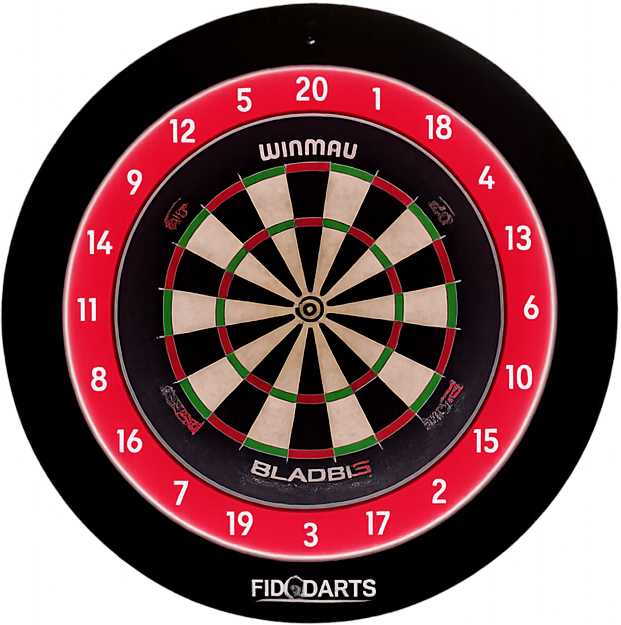
  • FidoHome dart machine dartboard
    01

    FidoHome dart machine

    The dart machine you will connect and activate.

  • Phone for setting up and operating FidoHome
    02

    One phone

    An Android phone or iPhone can be used to set up and operate FidoHome.

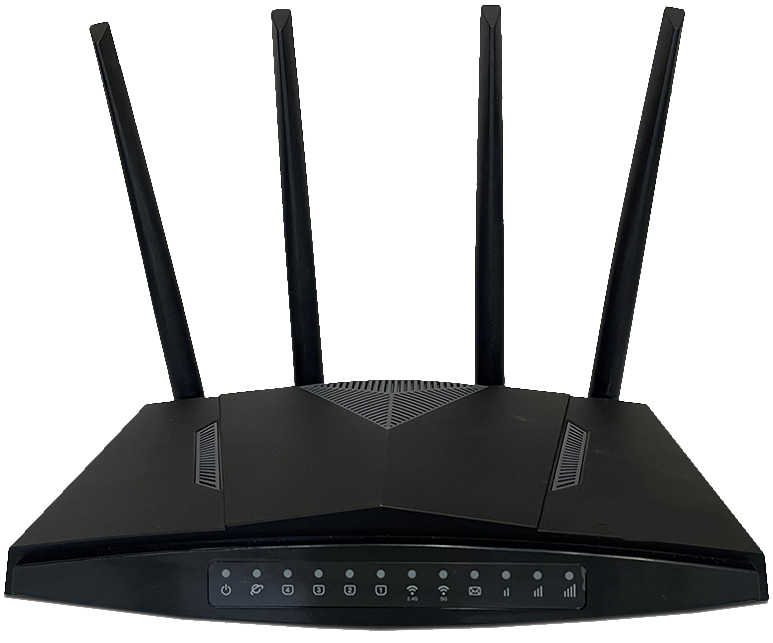
  • Wi-Fi router
    03

    One Wi-Fi router

    Internet connection required

    Provides internet-connected Wi-Fi for your phone and dart machine.

Stage 1 of 7 Prepare your phone Step 1 of 17
  1. Prepare your phone
  2. Install and configure the app
  3. Sign in or create an account
  4. Turn on and connect the dart machine
  5. Connect the dart machine to Wi-Fi
  6. Update and activate
  7. Start playing

STEP BY STEP

FidoHome activation steps

Complete the numbered steps in order. If you already have an account, skip the optional account-creation steps.

  1. 01

    Prepare your phone

    Turn on the connections FidoHome needs.

  2. 1Prepare

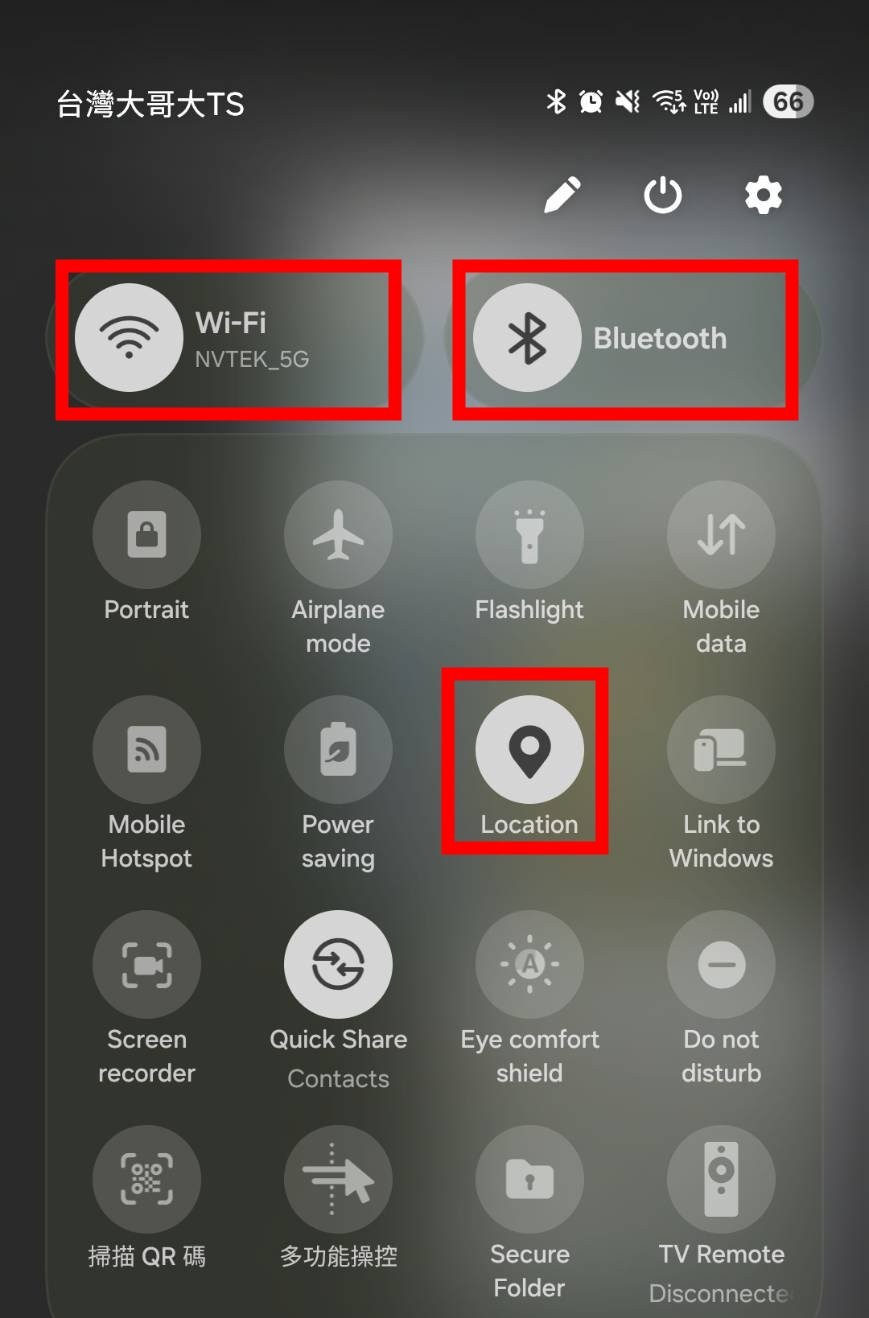
    Turn on Wi-Fi, Bluetooth, and Location

    What to do
    Open your phone settings, then turn on Wi-Fi, Bluetooth, and Location.
    Helpful check
    The Location setting may appear under Location Services depending on your phone.
    Reference screen for: Turn on Wi-Fi, Bluetooth, and Location
    Reference screen for: Turn on Wi-Fi, Bluetooth, and Location
  3. 2Prepare

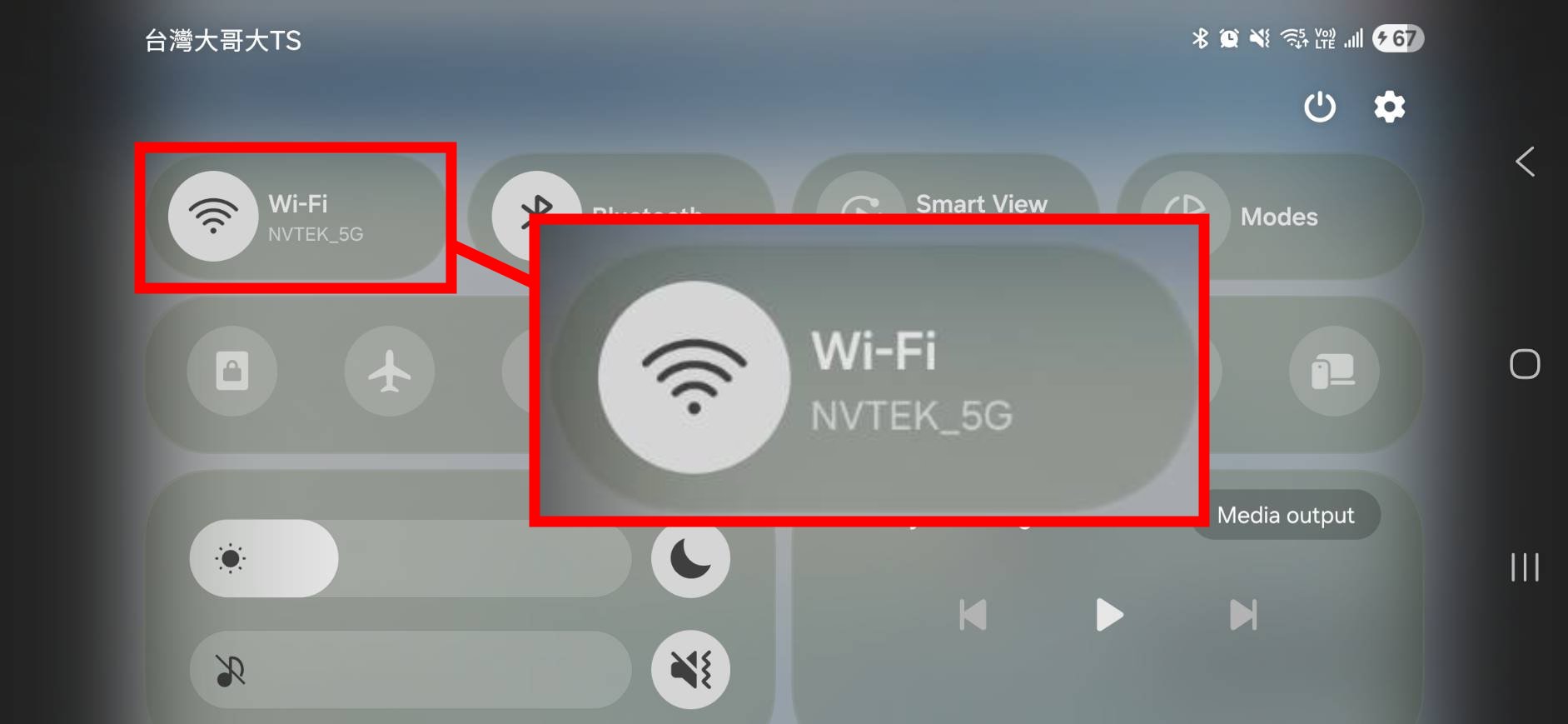
    Connect your phone to Wi-Fi

    What to do
    Open the Wi-Fi settings on your phone and connect to a Wi-Fi network.
    Helpful check
    Remember this Wi-Fi name. You will select the same one in Step 14.
    Reference screen for: Connect your phone to Wi-Fi
    Reference screen for: Connect your phone to Wi-Fi
  4. 02

    Install and configure the app

    Install FidoHome, then choose the correct server and display language.

  5. 3Install

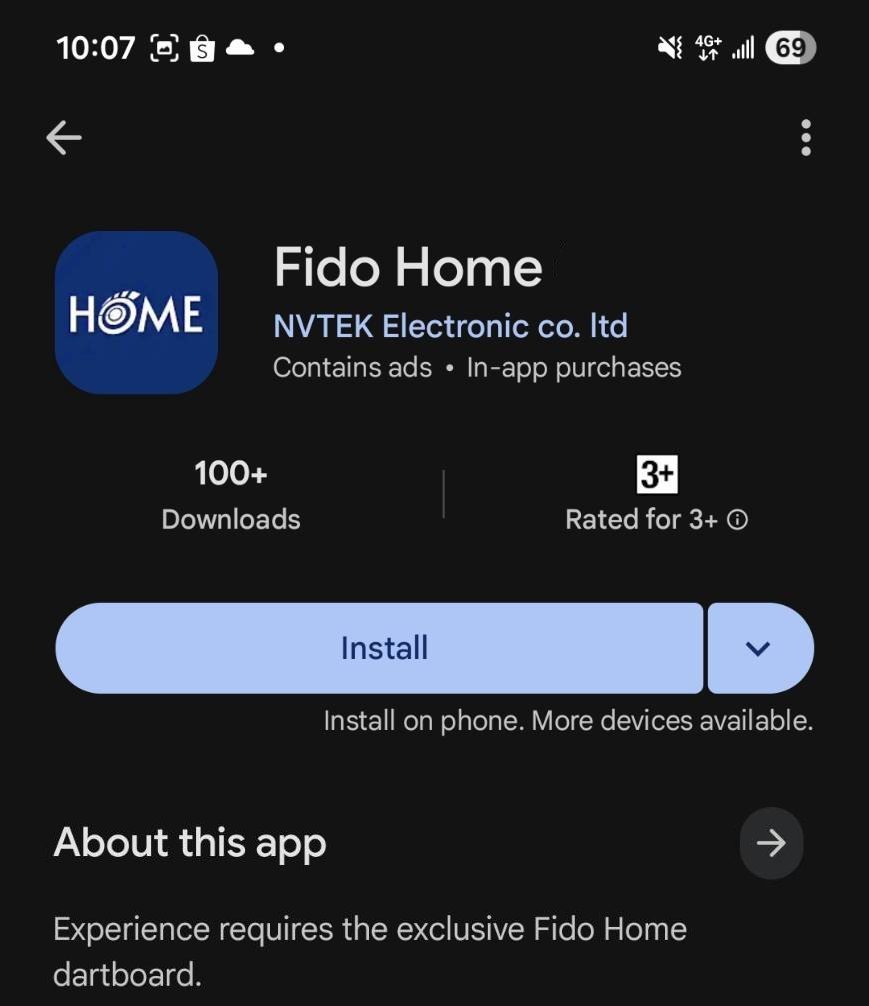
    Install and open the FidoHome app

    What to do
    Search for “Fido Home” in the App Store or Google Play, verify the app name, install it, and open it.
    Helpful check
    The store layout may look different depending on your phone.
    Reference screen for: Install and open the FidoHome app
    Reference screen for: Install and open the FidoHome app
  6. 4Install

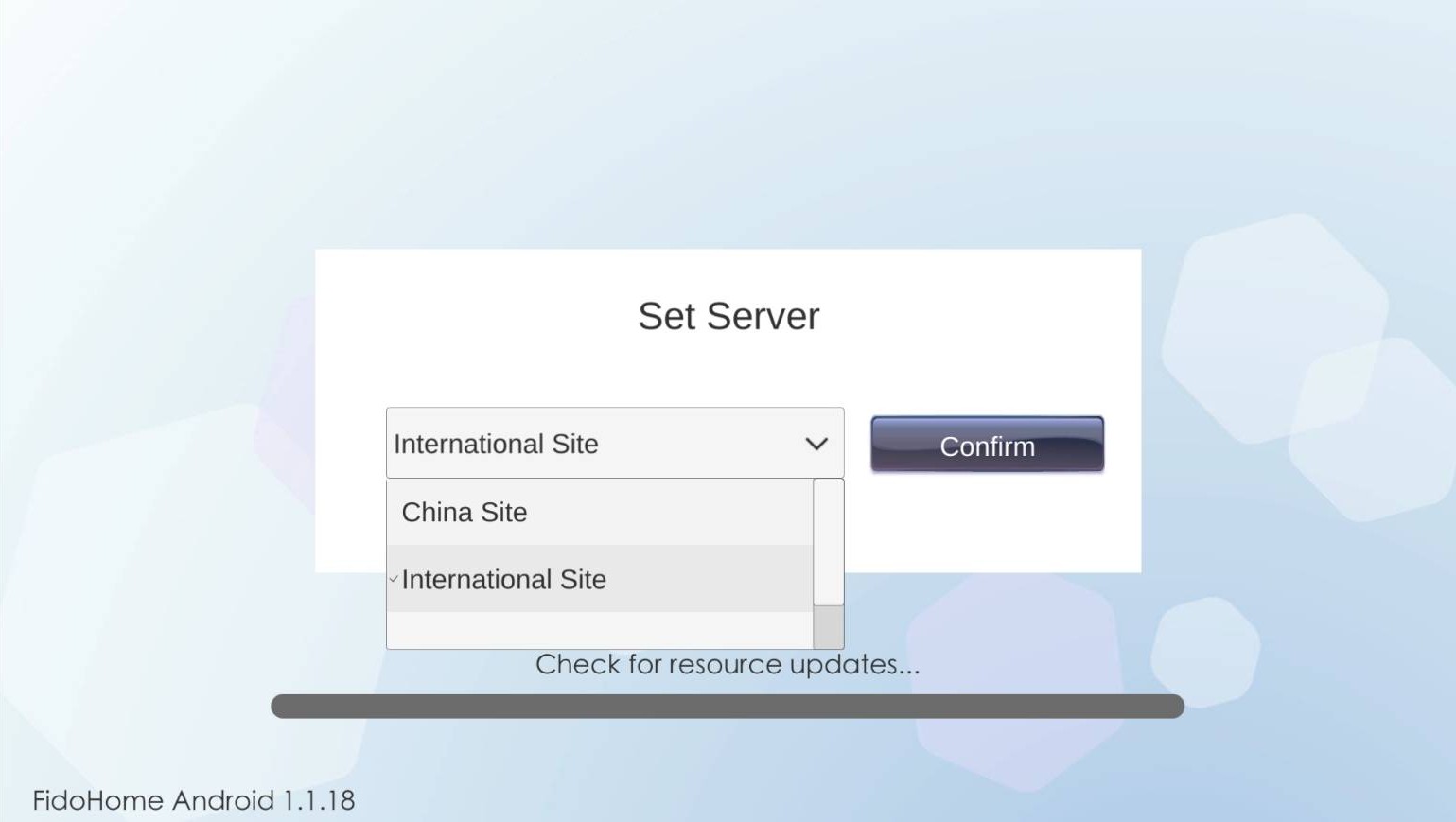
    Select the correct server

    What to do
    Choose “International Site”. Players in mainland China should choose “China Site”, then select Confirm.
    Helpful check
    If you are unsure which server your account uses, confirm with FidoDarts support before continuing.
    Reference screen for: Select the correct server
    Reference screen for: Select the correct server
  7. 5Install

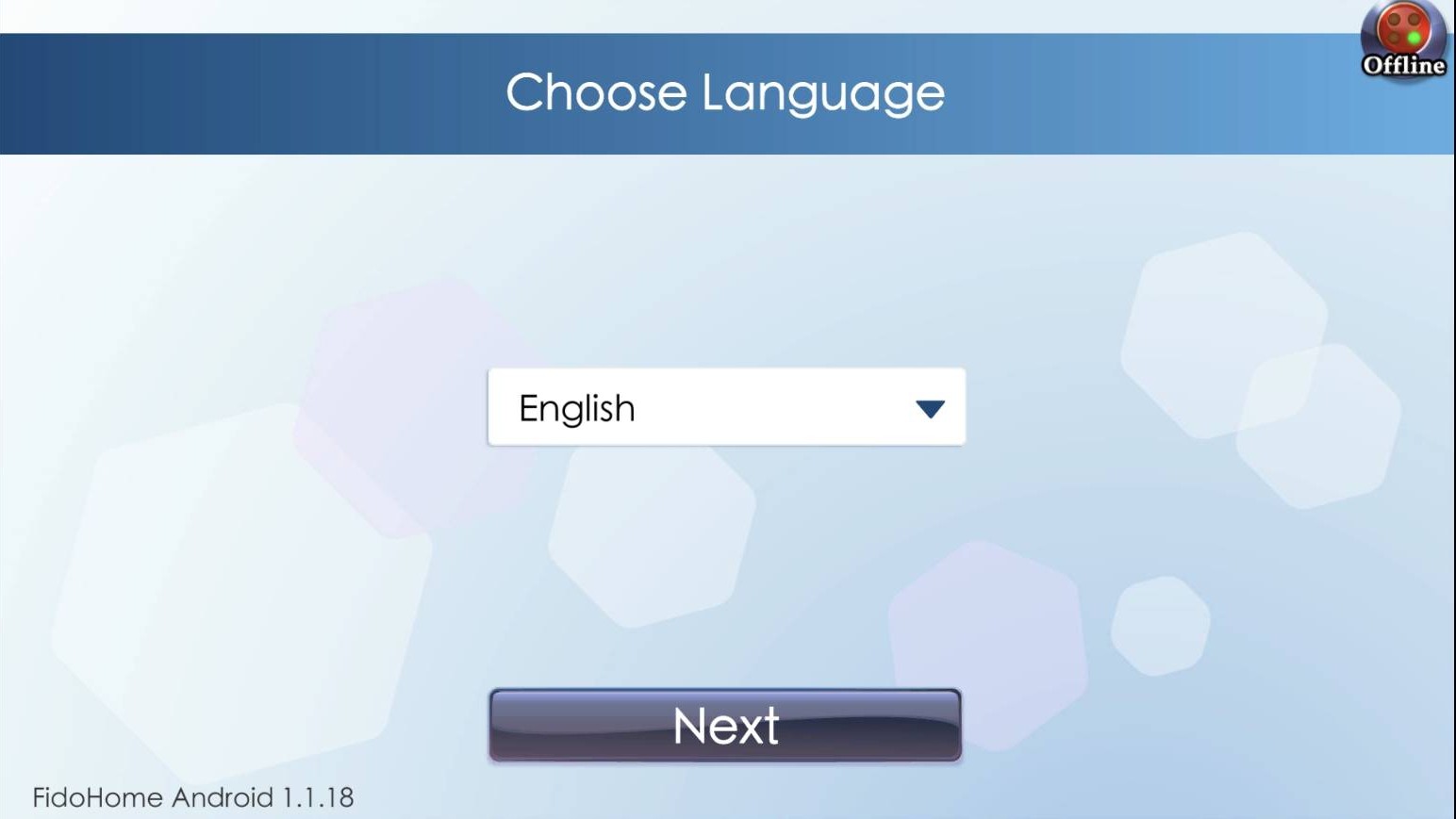
    Choose the app display language

    What to do
    Select your preferred language, then choose Next.
    Reference screen for: Choose the app display language
    Reference screen for: Choose the app display language
  8. 03

    Sign in or create an account

    Use an existing FidoDarts account or create a new one.

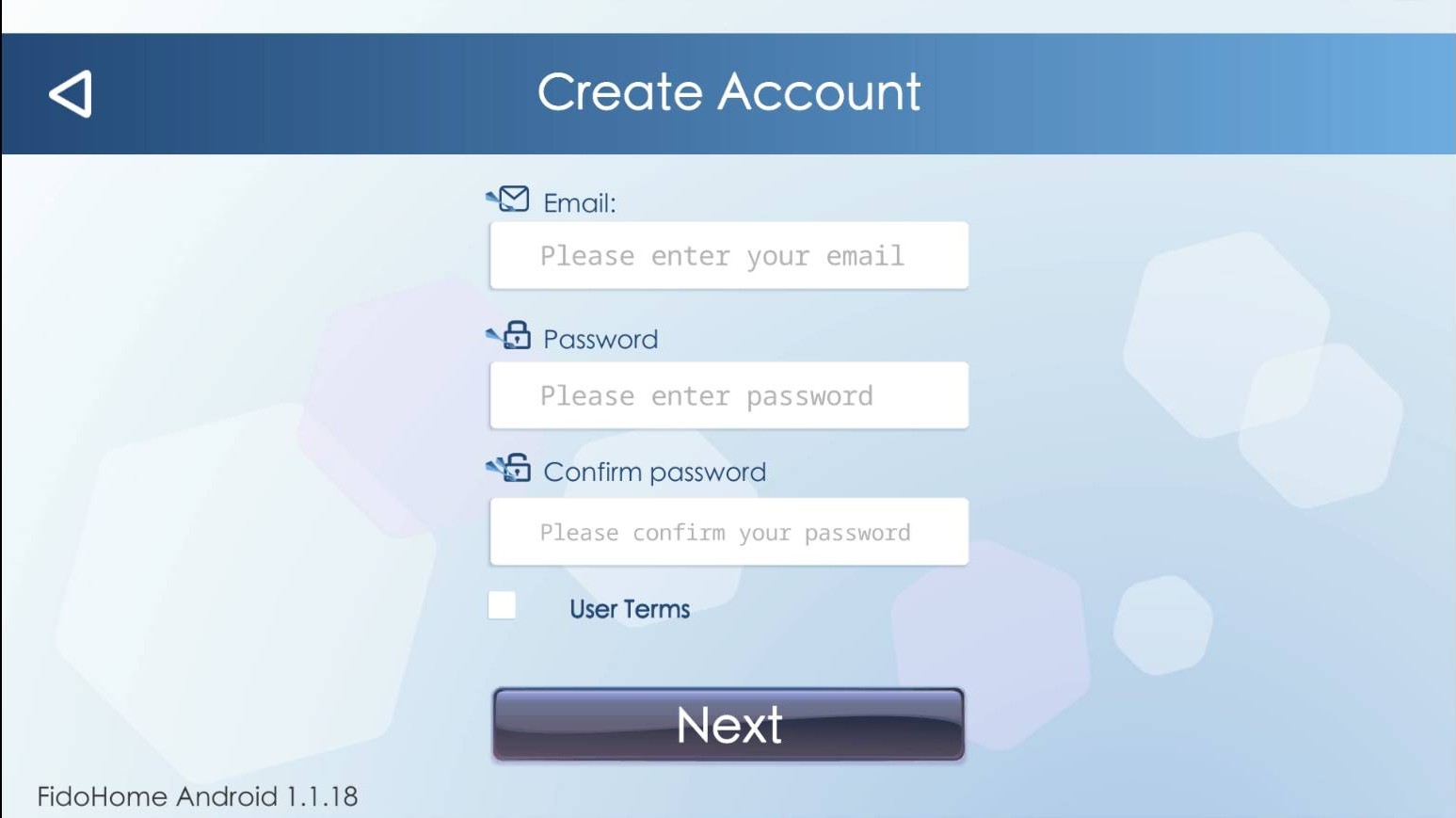
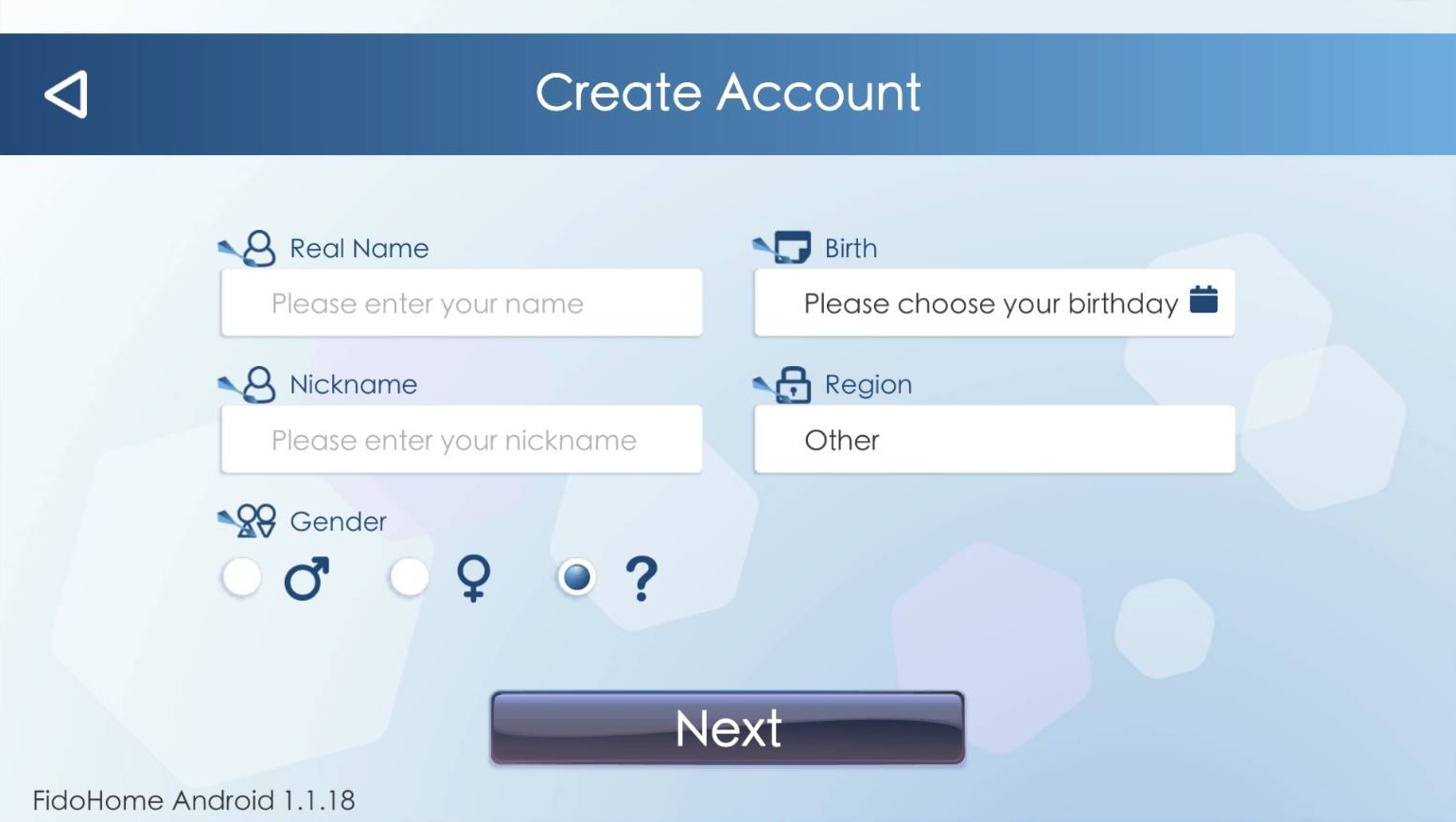
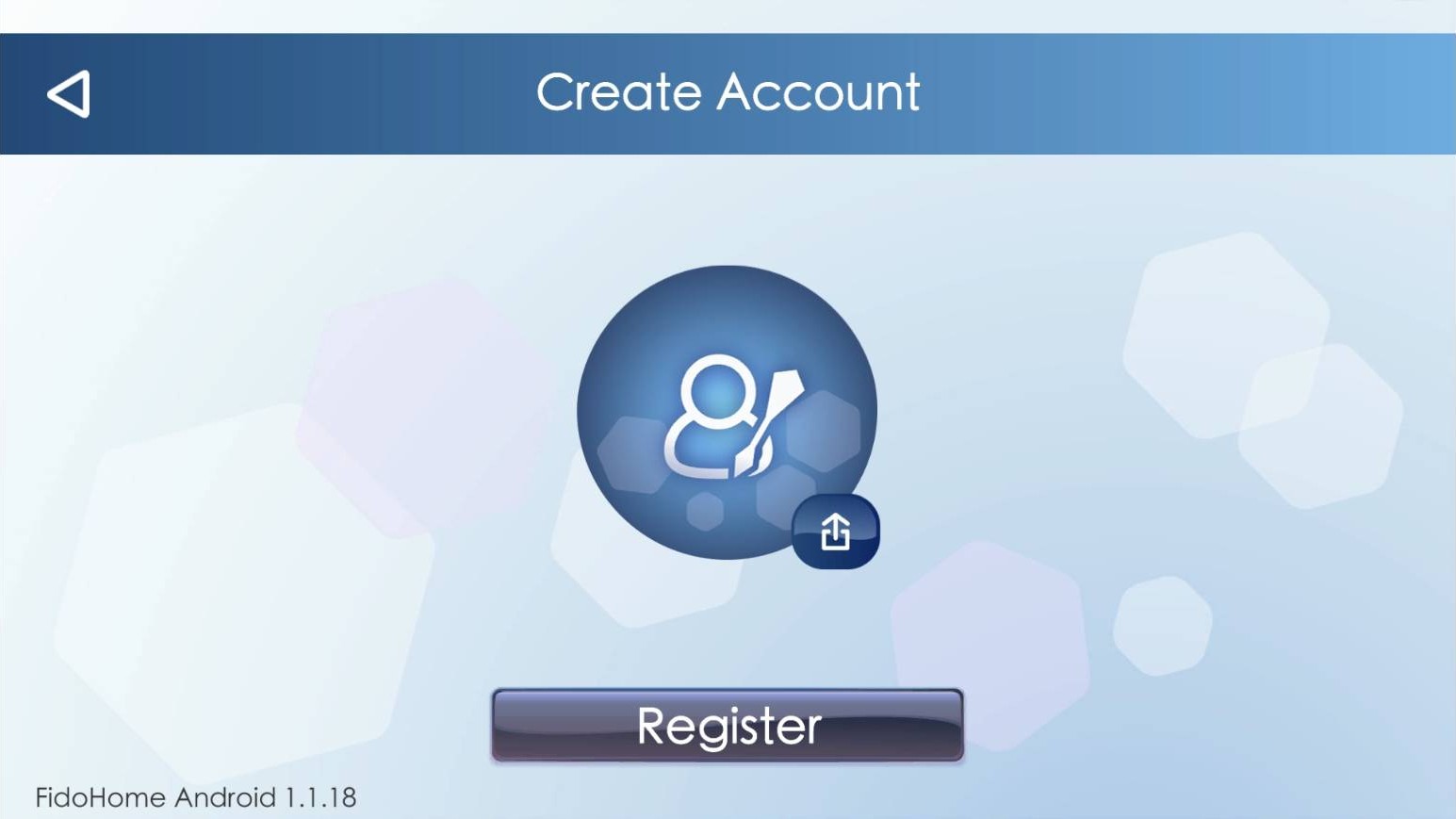
  9. 6Account

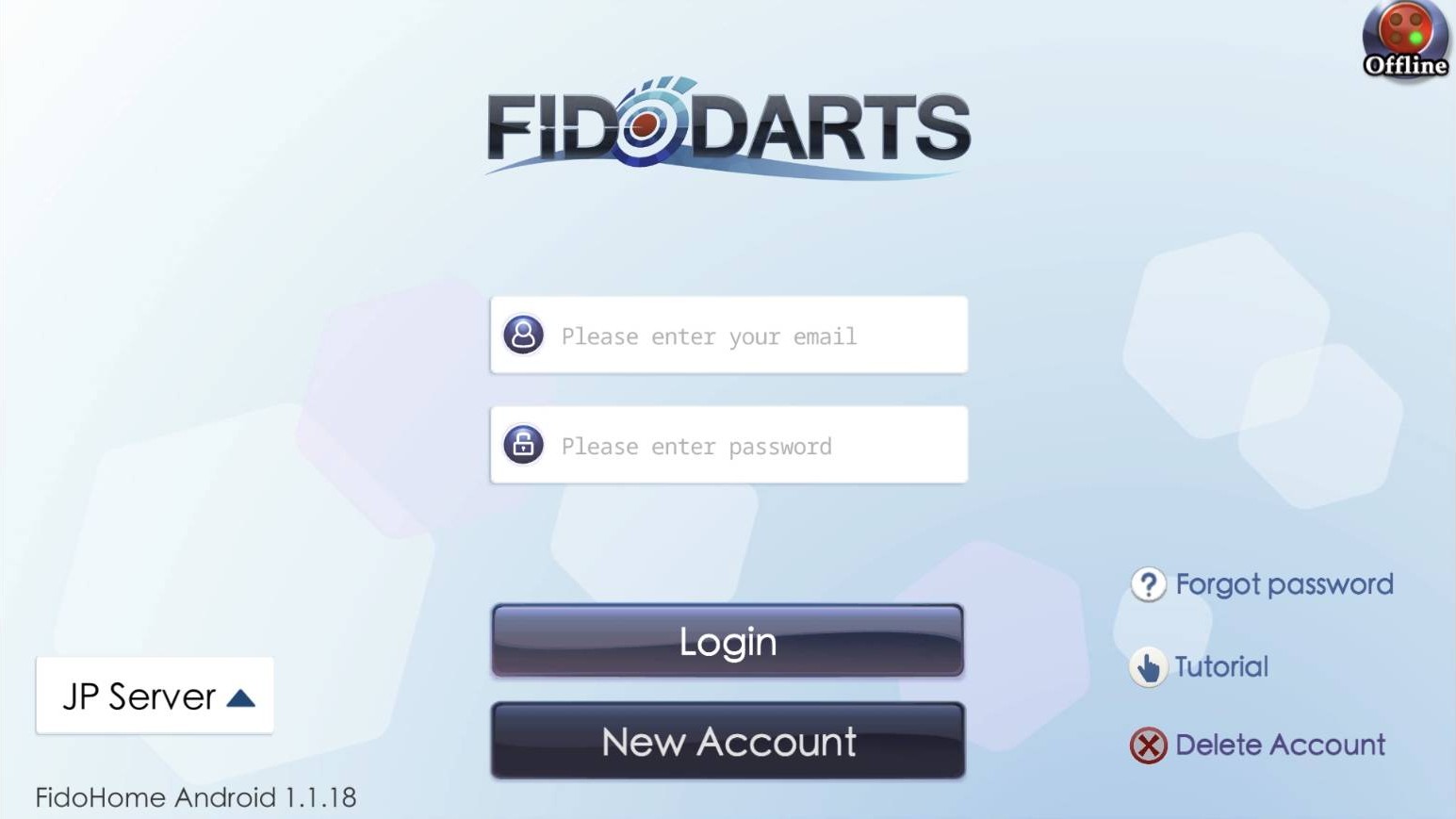
    Sign in to your FidoDarts account

    What to do
    Do you already have a FidoDarts account?
    Reference screen for: Sign in to your FidoDarts account
    Reference screen for: Sign in to your FidoDarts account
  10. 7Account

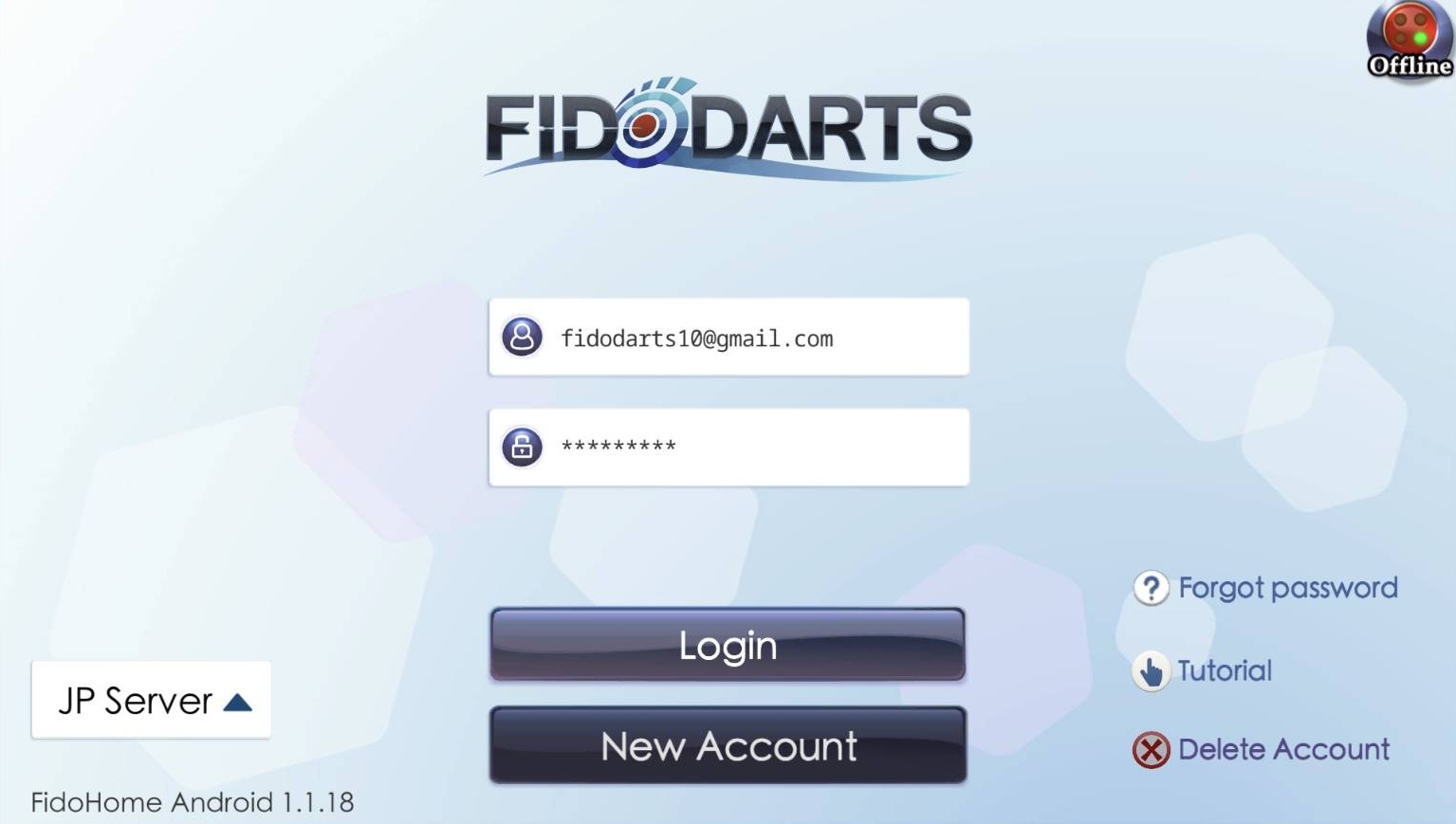
    Sign in to the FidoHome app

    What to do
    Enter your registered email and password, then choose Login.
    Helpful check
    If you just created an account, return to this screen and use the new credentials.
    Reference screen for: Sign in to the FidoHome app
    Reference screen for: Sign in to the FidoHome app
  11. 04

    Turn on and connect the dart machine

    Wait for the blue status light, then find the machine in the app.

  12. 8Connect

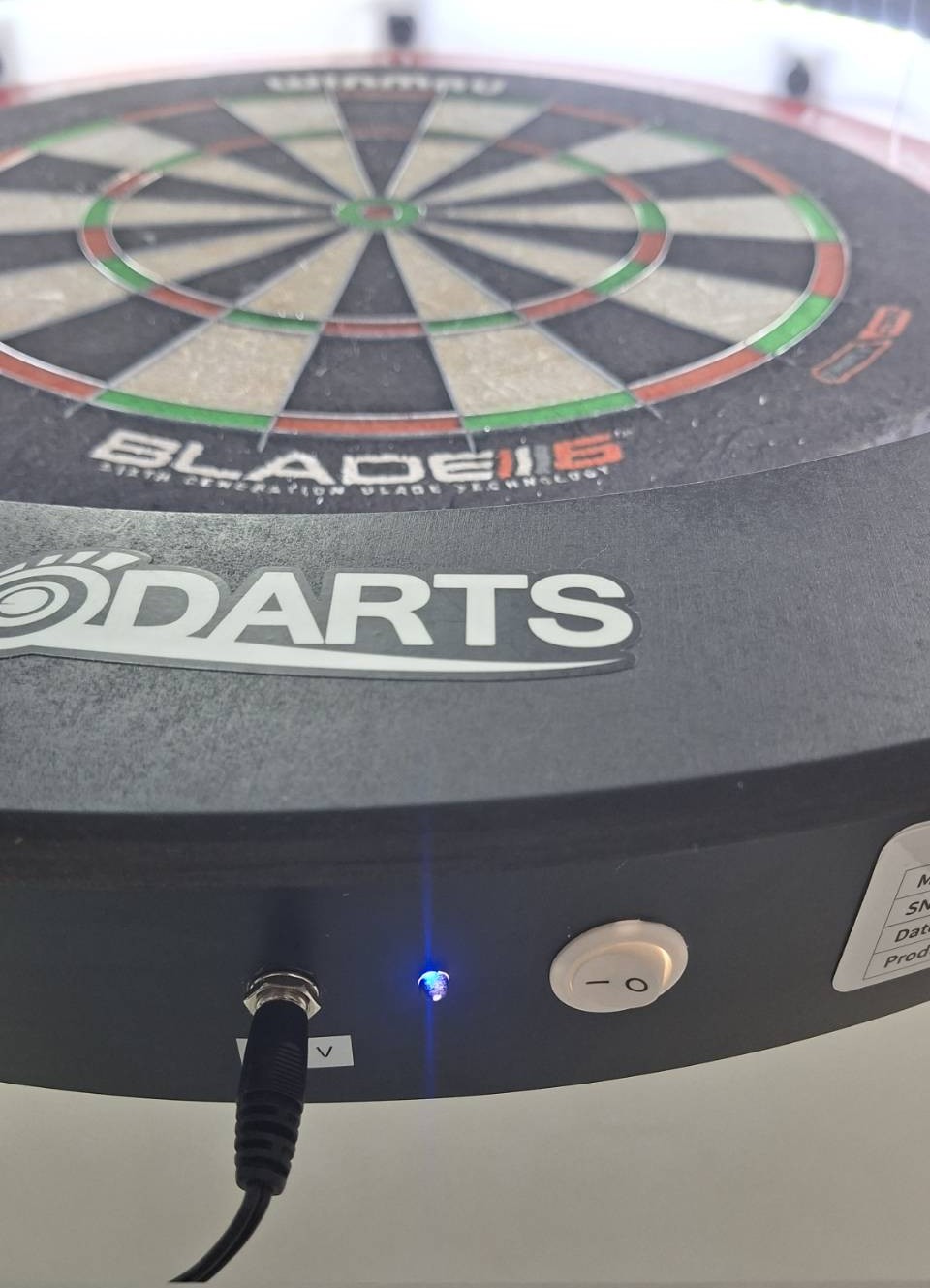
    Turn on the dart machine and wait for the blue light

    What to do
    Power on the FidoHome dart machine. Wait until the LED at the bottom stays solid blue.
    Helpful check
    Do not start connecting until the blue light is steady.
    Reference screen for: Turn on the dart machine and wait for the blue light
    Reference screen for: Turn on the dart machine and wait for the blue light
  13. 9Connect

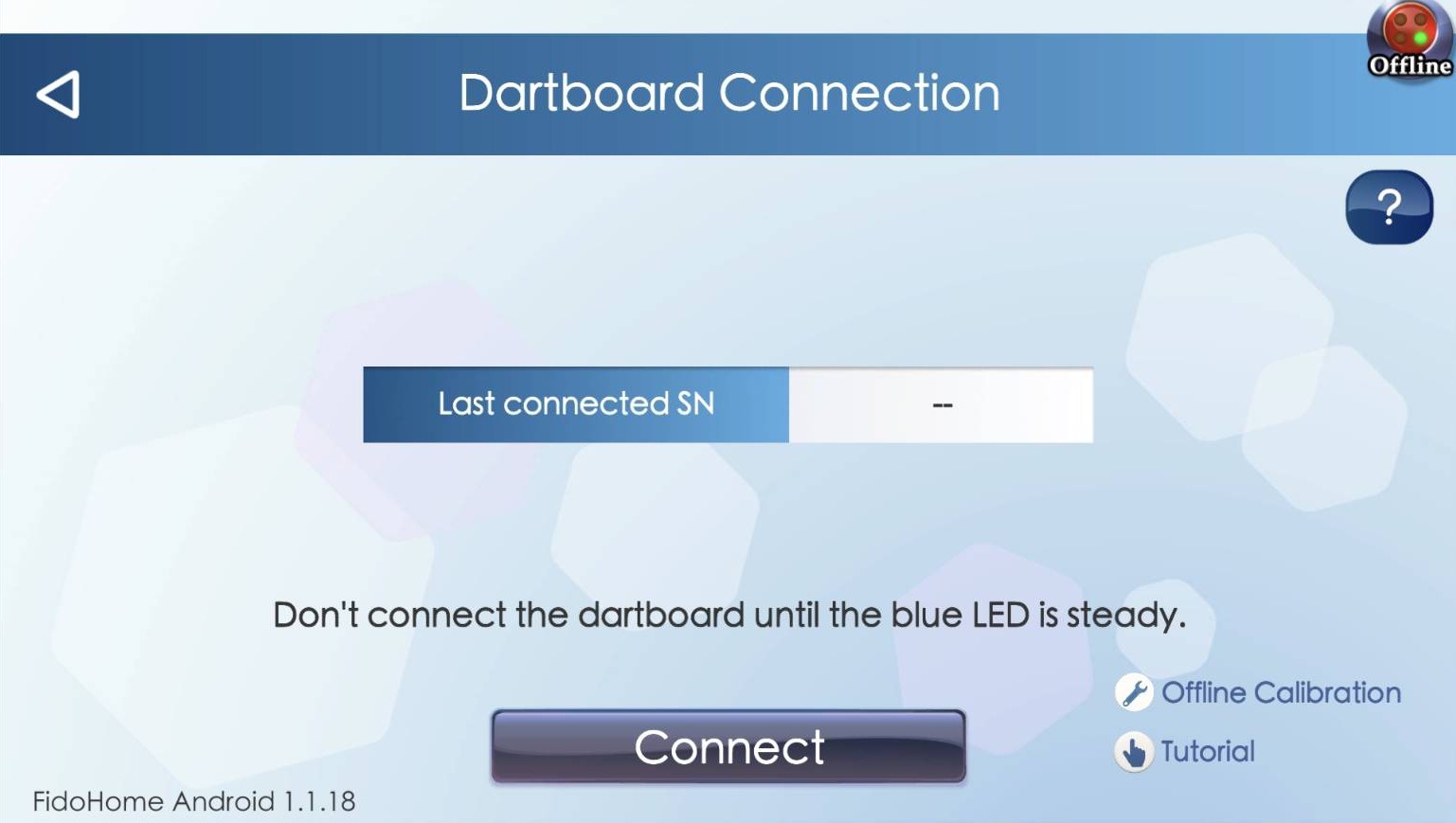
    Choose Connect in the app

    What to do
    On the Dartboard Connection screen, choose Connect.
    Reference screen for: Choose Connect in the app
    Reference screen for: Choose Connect in the app
  14. 10Connect

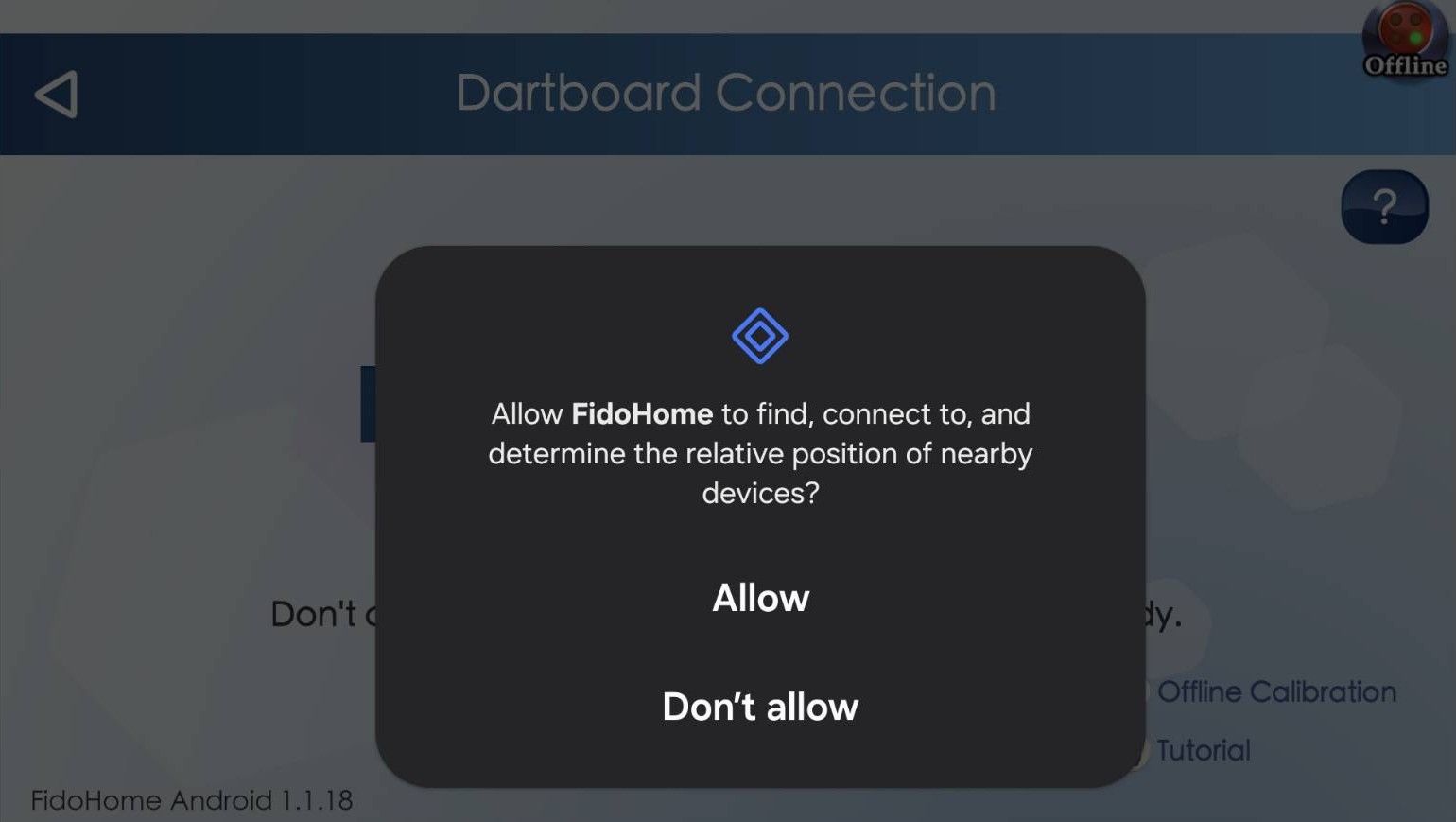
    Allow the connection permission

    What to do
    When your phone asks for access needed to find and connect to nearby devices, choose Allow.
    Helpful check
    The exact permission wording depends on your phone and system version.
    Reference screen for: Allow the connection permission
    Reference screen for: Allow the connection permission
  15. 11Connect

    Wait while the app searches

    What to do
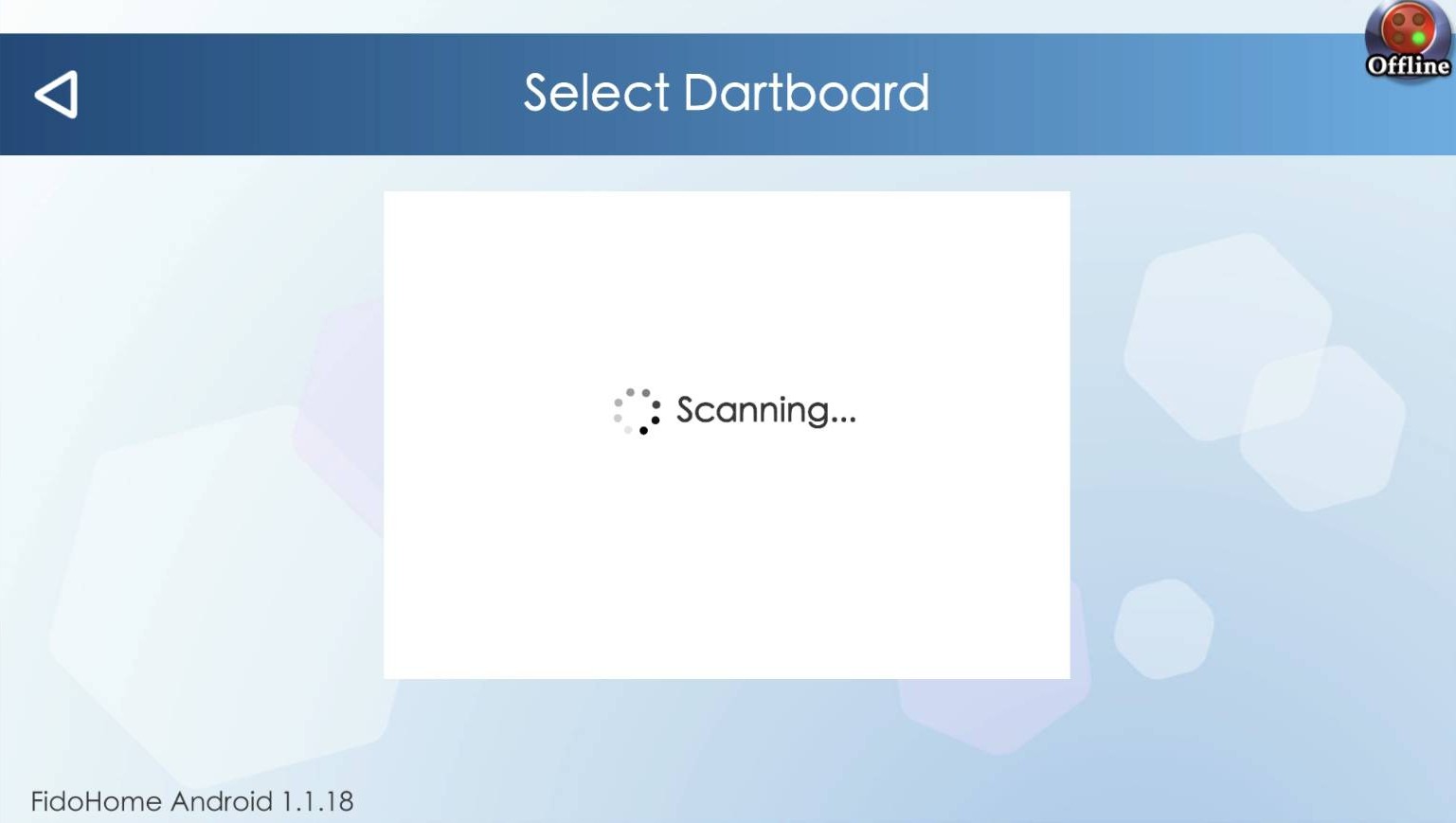
    Keep the phone near the machine while the Select Dartboard screen shows Scanning.
    Helpful check
    If nothing appears, confirm that Bluetooth is on and the machine LED is solid blue, then scan again.
    Reference screen for: Wait while the app searches
    Reference screen for: Wait while the app searches
  16. 12Connect

    Select your dart machine

    What to do
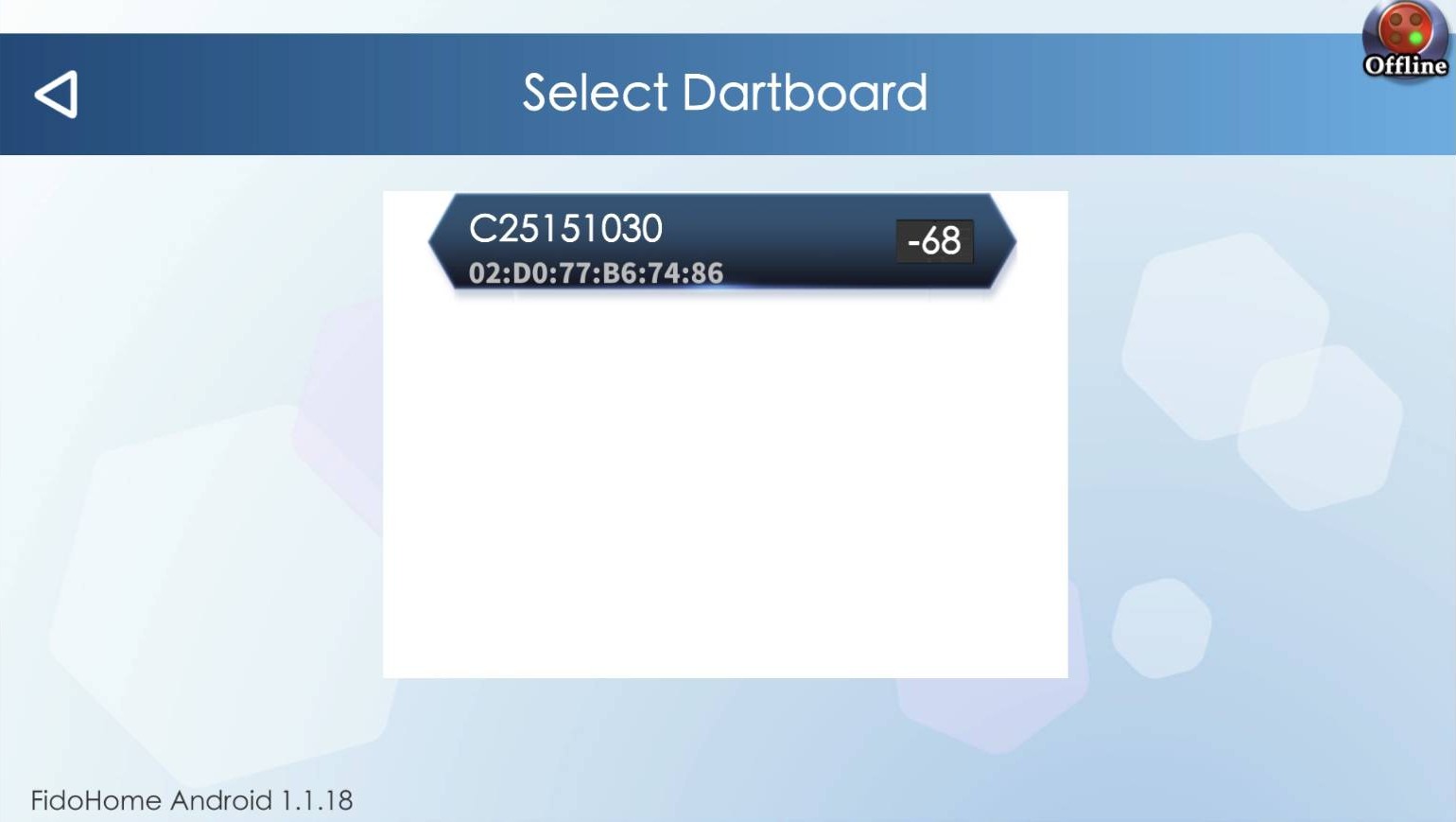
    Choose the machine shown in the search results. Compare its name or serial number before continuing.
    Helpful check
    If several machines are nearby, choose only the one you are setting up.
    Reference screen for: Select your dart machine
    Reference screen for: Select your dart machine
  17. 05

    Connect the dart machine to Wi-Fi

    Use the same network as your phone and enter its password.

  18. 13Wi-Fi

    Open the dart machine Wi-Fi settings

    What to do
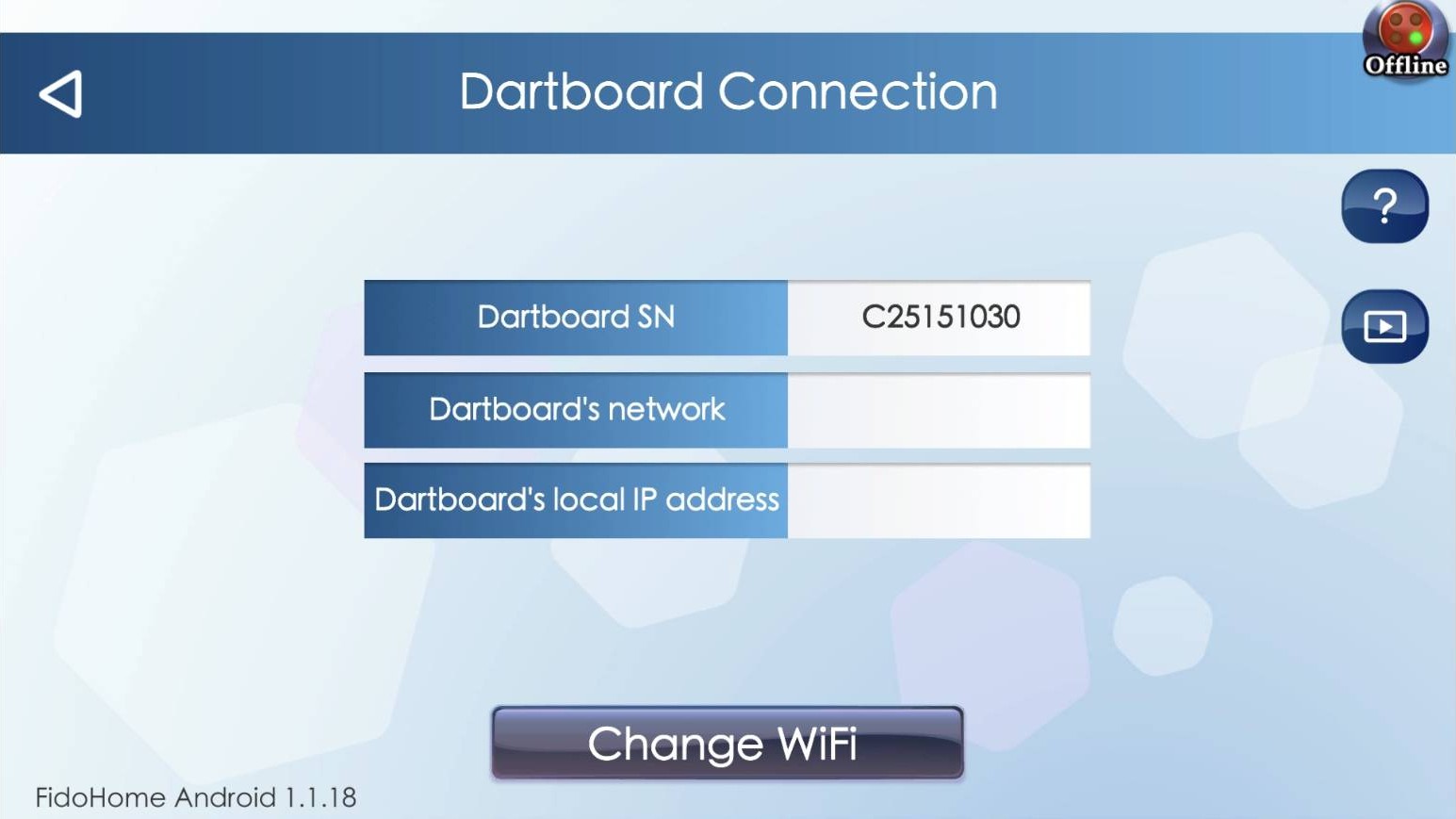
    On the Dartboard Connection screen, choose Change WiFi.
    Reference screen for: Open the dart machine Wi-Fi settings
    Reference screen for: Open the dart machine Wi-Fi settings
  19. 14Wi-Fi

    Select the same Wi-Fi used in Step 2

    What to do
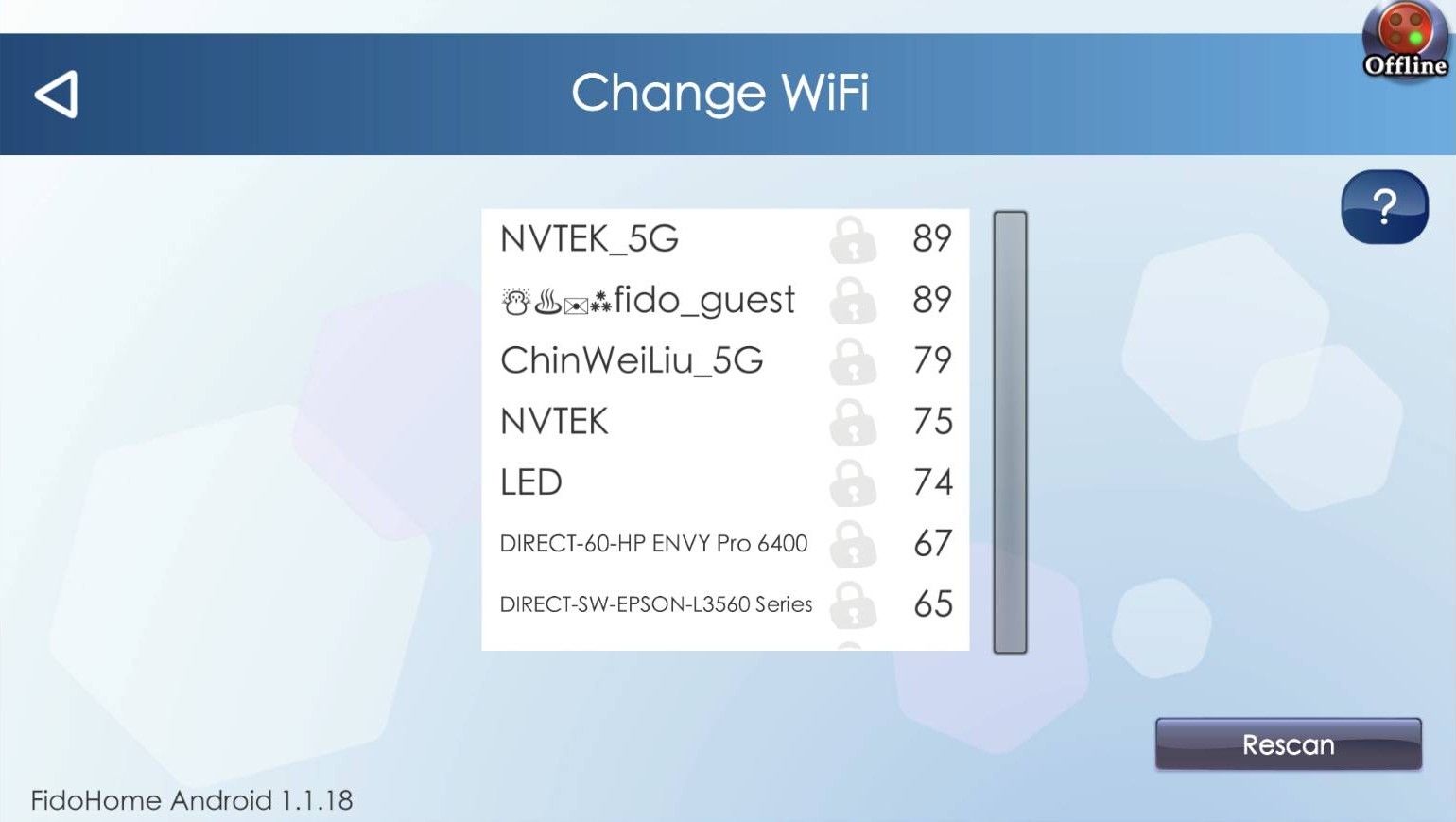
    In the Wi-Fi list, select the same Wi-Fi network that your phone connected to in Step 2.
    Helpful check
    The Wi-Fi name must be the same as the one used in Step 2.
    Reference screen for: Select the same Wi-Fi used in Step 2
    Reference screen for: Select the same Wi-Fi used in Step 2
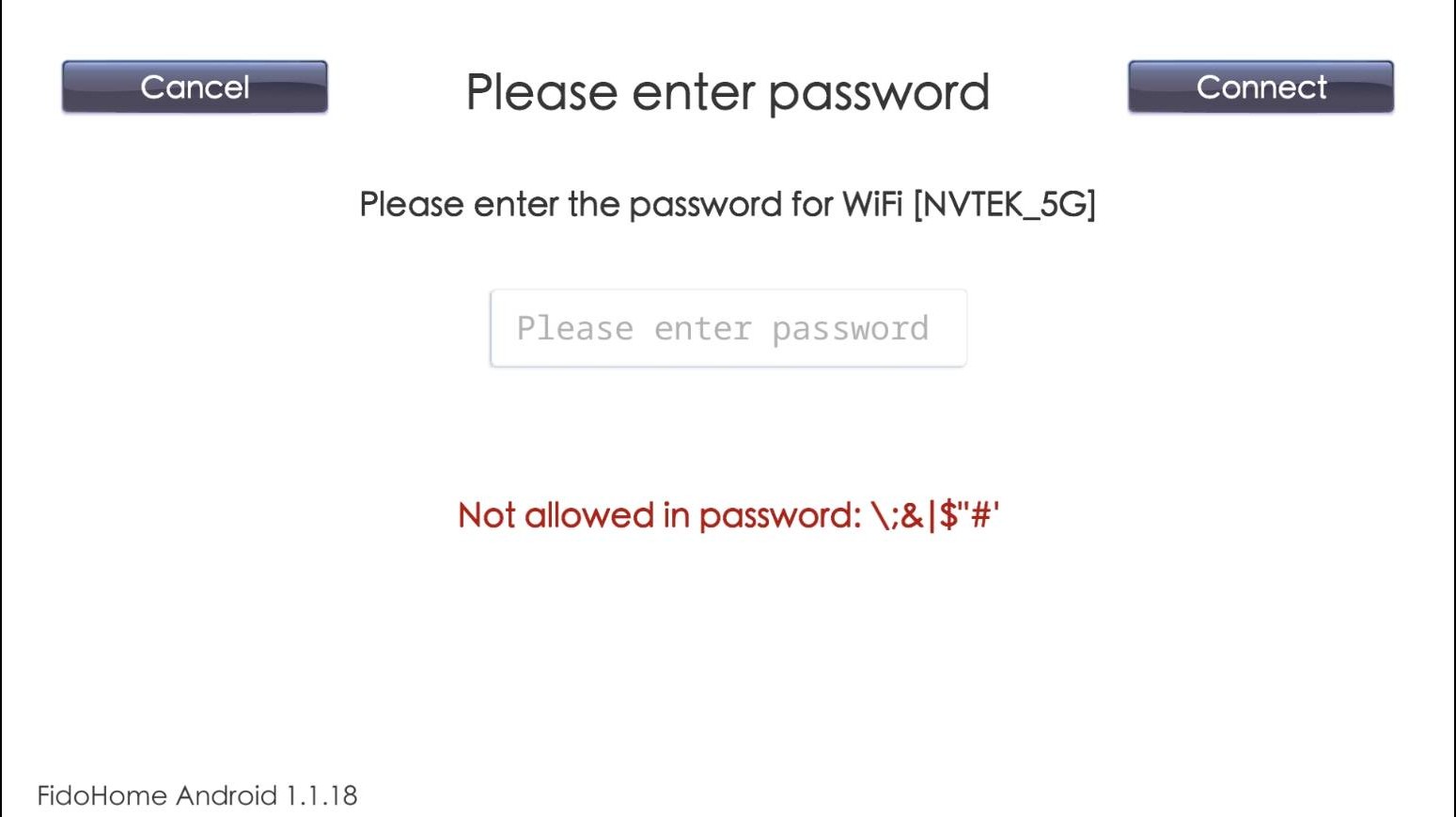
  20. 15Wi-Fi

    Enter the Wi-Fi password

    What to do
    Type the password for the selected network, then choose Connect.
    Helpful check
    Wi-Fi passwords are case-sensitive. Enter uppercase and lowercase letters exactly.
    Reference screen for: Enter the Wi-Fi password
    Reference screen for: Enter the Wi-Fi password
  21. 06

    Update and activate

    Let the app complete its checks, then confirm activation.

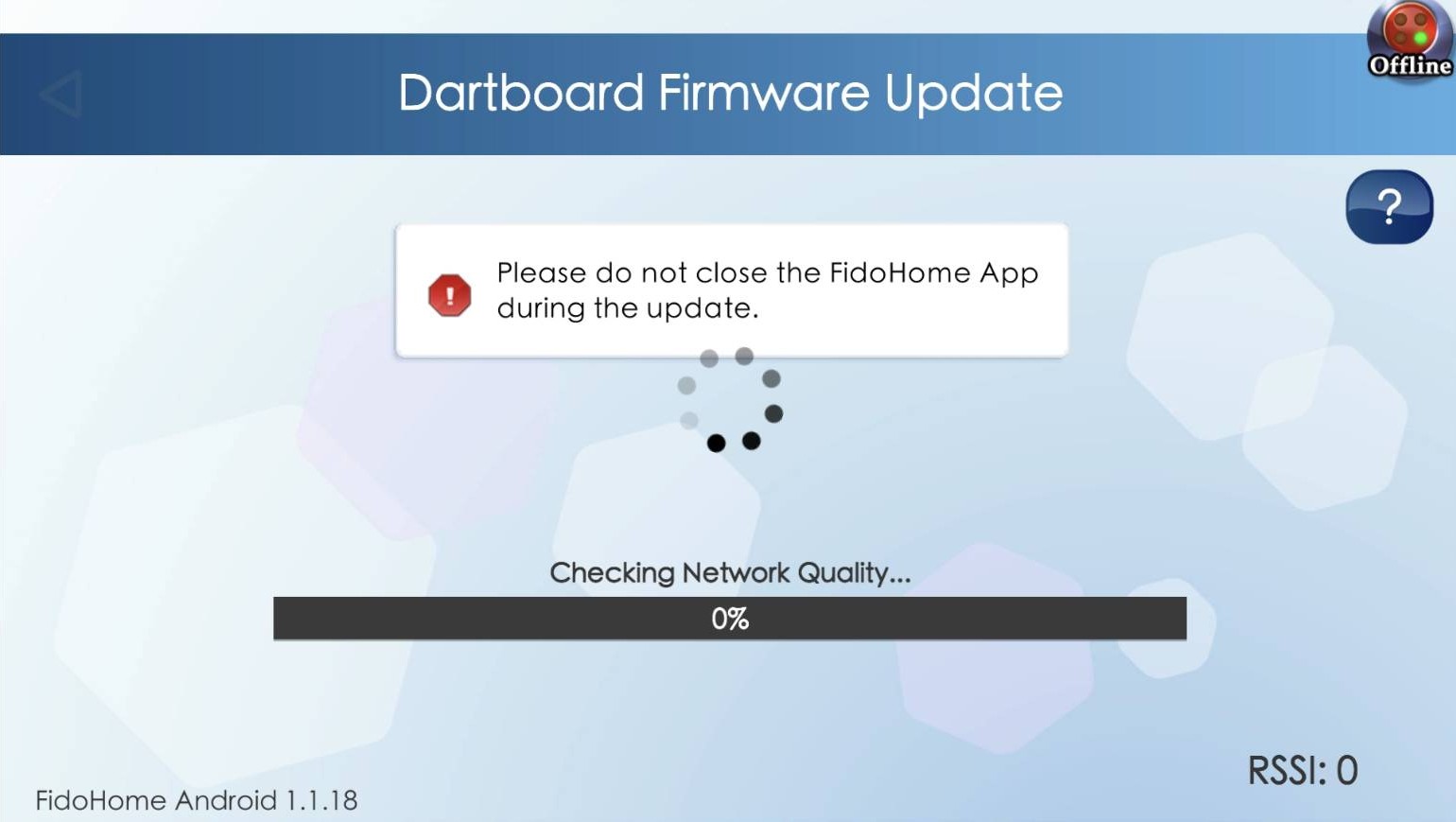
  22. 16Activate

    Wait for the firmware check to finish

    What to do
    Keep the app open and leave the machine powered on while the app checks network quality and firmware.
    Helpful check
    Do not close the app during an update.
    Reference screen for: Wait for the firmware check to finish
    Reference screen for: Wait for the firmware check to finish
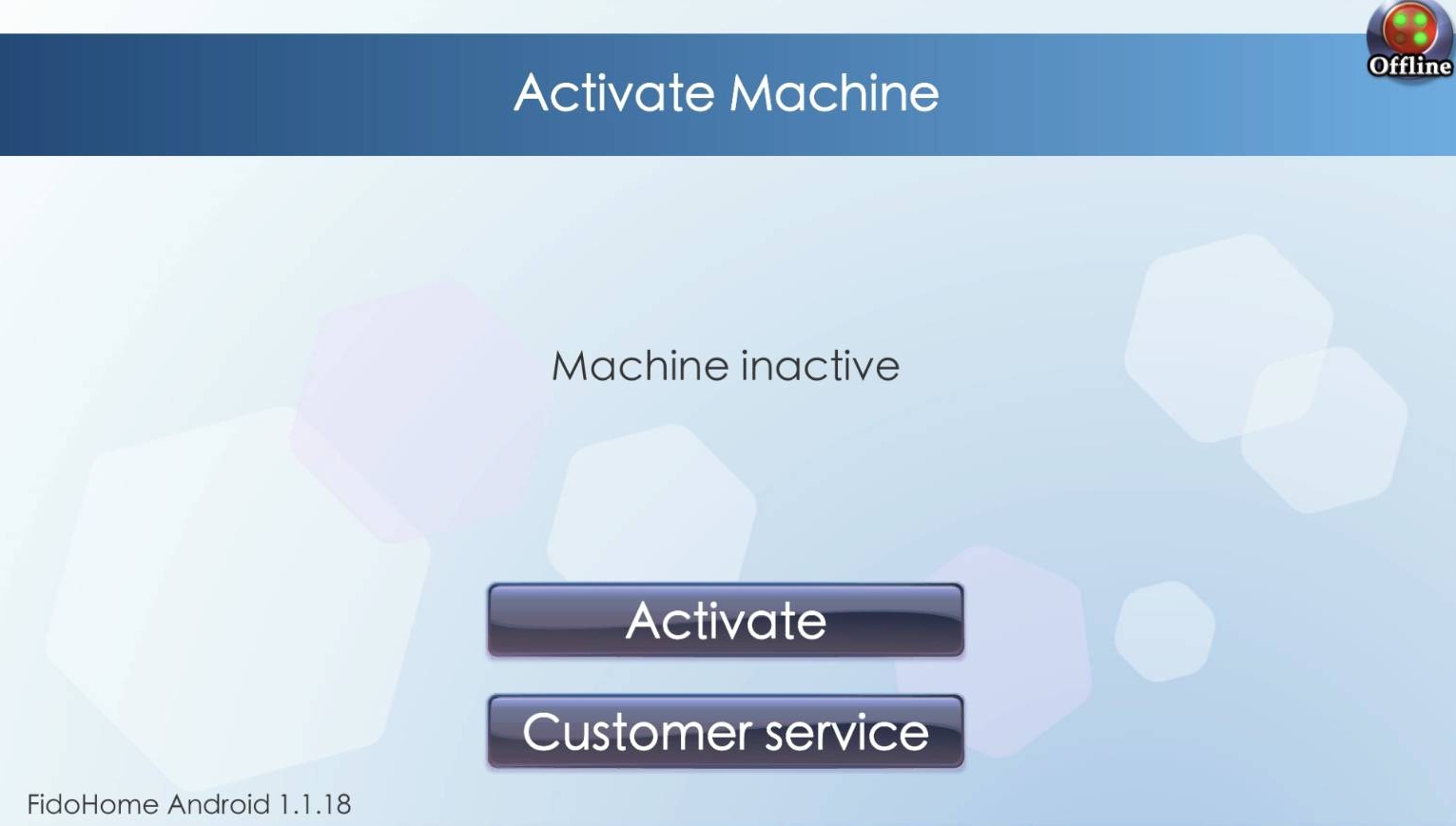
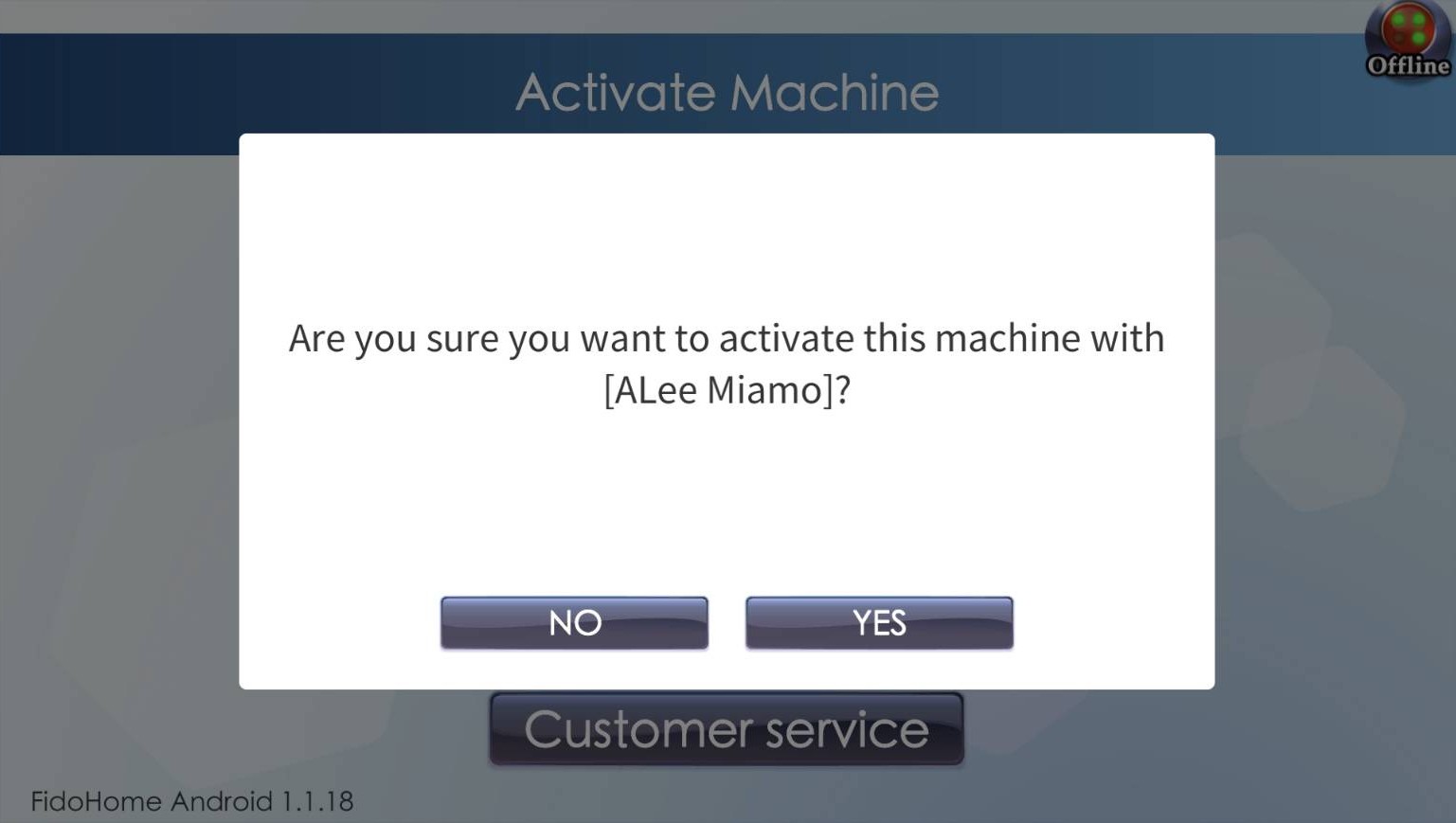
  23. 17Activate

    Activate the machine and confirm

    What to do
    Choose Activate. Check the account shown in the confirmation message, then choose Yes to continue.
    Helpful check
    Confirm that the account name is correct before choosing Yes.
    Reference screen for: Activate the machine and confirm
    Reference screen for: Activate the machine and confirm 1/2
    Reference screen for: Activate the machine and confirm
    Reference screen for: Activate the machine and confirm 2/2

READY TO PLAY

Activation complete

When the dart machine displays the game menu, basic FidoHome setup and activation are complete. You can now choose a game and start playing.

When the dart machine displays the game menu, basic FidoHome setup and activation are complete. You can now choose a game and start playing.
Activation complete
Facebook WhatsApp